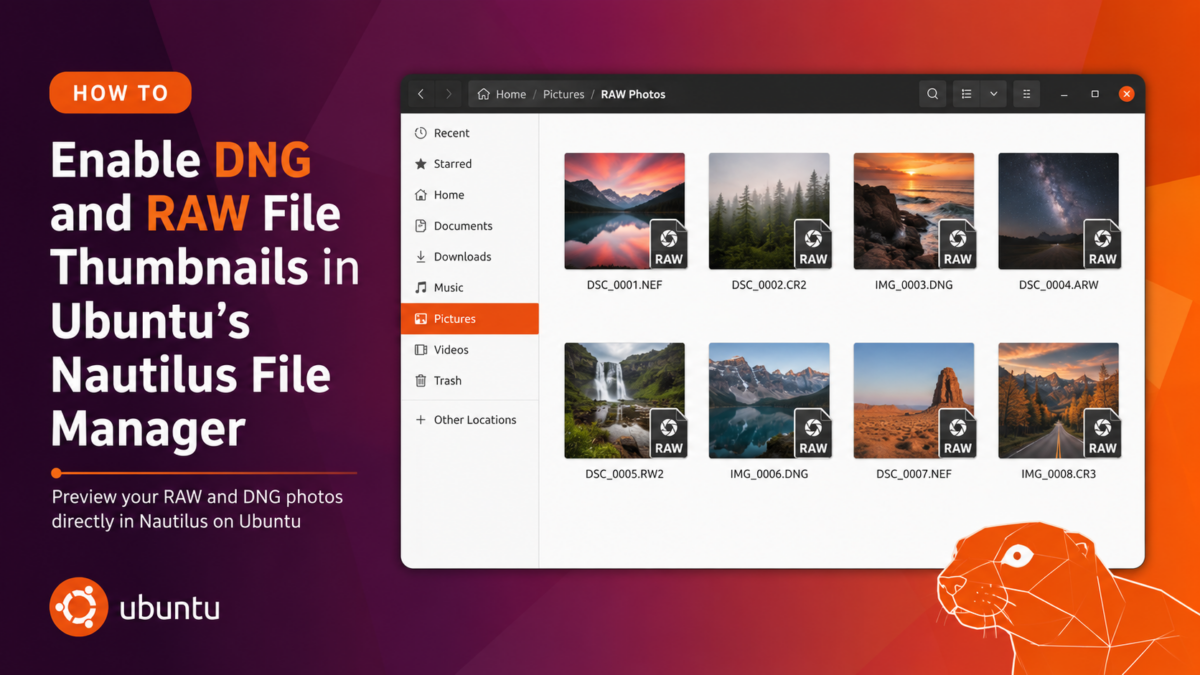
Ubuntu’s Nautilus file manager doesn’t show thumbnails for DNG, CR2, NEF, ARW, or other RAW camera formats out of the box. This guide covers the exact steps to fix that using dcraw and a custom thumbnailer registration.
Why RAW Thumbnails Don’t Work on Ubuntu
The package most guides point to — libopenrawgnome — only installs a shared library. It ships with no .thumbnailer registration file, so Nautilus never learns it can handle RAW formats. The thumbnailer sits unused, and your DNG files show a generic icon no matter how long you wait.
The fix involves three things: a tool that can extract embedded previews from RAW files (dcraw), a small wrapper script that feeds those previews to ImageMagick for resizing, and a .thumbnailer file that tells Nautilus the script exists.
Step 1 — Install the Required Packages
sudo apt install libopenrawgnome7t64 -y
dcraw is available on most Ubuntu installs already. Check with:
which dcraw
If it’s missing, install it:
sudo apt install dcraw -y
ImageMagick (convert) is also needed. Verify:
which convert
Install if absent:
sudo apt install imagemagick -y
Step 2 — Create the Thumbnailer Script
Create the file /usr/local/bin/raw-thumbnailer:
sudo nano /usr/local/bin/raw-thumbnailer
Paste in:
#!/bin/bash
dcraw -e -c "$1" 2>/dev/null | convert - -thumbnail "$3x$3" "$2" 2>/dev/null
Save and make it executable:
sudo chmod +x /usr/local/bin/raw-thumbnailer
This script takes three arguments — input file path, output PNG path, and size — which is exactly the interface Nautilus passes to any registered thumbnailer. dcraw -e -c extracts the embedded JPEG preview that most RAW files carry internally, and convert resizes it to the requested thumbnail dimensions.
Step 3 — Register the Thumbnailer with Nautilus
Create /usr/share/thumbnailers/raw.thumbnailer:
sudo nano /usr/share/thumbnailers/raw.thumbnailer
Paste in:
[Thumbnailer Entry]
TryExec=/usr/local/bin/raw-thumbnailer
Exec=/usr/local/bin/raw-thumbnailer %i %o %s
MimeType=image/x-dcraw;image/x-adobe-dng;image/x-canon-cr2;image/x-canon-crw;image/x-nikon-nef;image/x-sony-arw;image/x-fuji-raf;image/x-panasonic-raw;image/x-olympus-orf;image/x-pentax-pef;image/x-sigma-x3f;
This covers DNG (Adobe), CR2/CRW (Canon), NEF (Nikon), ARW (Sony), RAF (Fujifilm), ORF (Olympus), PEF (Pentax), and Panasonic RAW formats in one file.
Step 4 — Clear the Thumbnail Cache and Restart Nautilus
Nautilus caches thumbnail failures. Clear the cache so it retries every file:
rm -rf ~/.cache/thumbnails/
Restart Nautilus:
nautilus -q && nautilus &
Navigate to a folder with DNG or RAW files — thumbnails should start generating within a few seconds.
How It Works
| Component | Role |
|---|---|
dcraw -e -c | Extracts the embedded JPEG preview from the RAW file |
convert (ImageMagick) | Resizes the extracted preview to the requested thumbnail size |
/usr/share/thumbnailers/raw.thumbnailer | Tells Nautilus which MIME types this script handles |
TryExec | Nautilus checks this path exists before calling the thumbnailer |
Most RAW files contain a full-resolution embedded JPEG shot by the camera. dcraw pulls that out directly, so thumbnail generation is fast — no full RAW decode required.
Supported Formats After This Fix
- DNG — Adobe Digital Negative (used by Google Pixel, OnePlus, Lightroom exports)
- CR2 / CRW — Canon RAW
- NEF — Nikon RAW
- ARW — Sony RAW
- RAF — Fujifilm RAW
- ORF — Olympus RAW
- PEF — Pentax RAW
- Panasonic RAW (RW2)
Troubleshooting
Thumbnails still not showing after restart
Run the script manually on one of your files to confirm it works:
/usr/local/bin/raw-thumbnailer "/path/to/your/file.dng" /tmp/test_thumb.png 256
file /tmp/test_thumb.png
The output should read something like PNG image data, 256 x 192, 8-bit/color RGB. If it does, the toolchain works and Nautilus will pick it up on the next browse.
dcraw: no embedded JPEG error
Some RAW files — particularly very old formats or losslessly-compressed DNGs — don’t carry an embedded preview. For those, dcraw falls back to a full decode. The thumbnail will still generate but may be slower.
Permission denied on /usr/share/thumbnailers/
The sudo in Step 3 is required. If you used a text editor that launched without sudo, recreate the file with:
sudo tee /usr/share/thumbnailers/raw.thumbnailer << 'EOF'
[Thumbnailer Entry]
TryExec=/usr/local/bin/raw-thumbnailer
Exec=/usr/local/bin/raw-thumbnailer %i %o %s
MimeType=image/x-dcraw;image/x-adobe-dng;image/x-canon-cr2;image/x-canon-crw;image/x-nikon-nef;image/x-sony-arw;image/x-fuji-raf;image/x-panasonic-raw;image/x-olympus-orf;image/x-pentax-pef;image/x-sigma-x3f;
EOF
FAQ / Common Questions
Why doesn’t Ubuntu show RAW thumbnails by default?
The libopenrawgnome package that ships in Ubuntu’s repositories installs only a shared library — it doesn’t include a .thumbnailer registration file. Without that file, Nautilus has no way to know the library supports RAW formats.
Does this work on Ubuntu 22.04, 24.04, and 24.10?
Yes. The .thumbnailer file format and dcraw are available across all current Ubuntu LTS and interim releases. The package name for the GNOME integration library differs slightly (libopenrawgnome7t64 on 24.04+, libopenrawgnome7 on 22.04), but the thumbnailer script and registration steps are identical.
Will this slow down Nautilus when browsing large RAW folders?
Thumbnail generation runs in the background. Nautilus queues files and processes them one at a time — browsing stays responsive. Generated thumbnails are cached in ~/.cache/thumbnails/, so each file is only processed once.
Does this work with DNG files from smartphones like Google Pixel and OnePlus?
Yes. DNG is the format used by Google Pixel, OnePlus, and many third-party camera apps. dcraw handles DNG files from both dedicated cameras and smartphones.
What if I want thumbnails in a KDE file manager like Dolphin instead?
Install kdegraphics-thumbnailers — it includes native RAW support for Dolphin and other KDE applications.
Note: Steps above were tested on Ubuntu 24.04 with Nautilus 46 and dcraw 9.28. Package names and exact paths may vary slightly on other Ubuntu versions. Verify commands before running on production systems.
Disclaimer: This post is for informational purposes. Commands involving sudo modify system files — review each step before executing.